 AudioBook
 Library Import
Bring an existing collection into ABM with the Import Workbench.
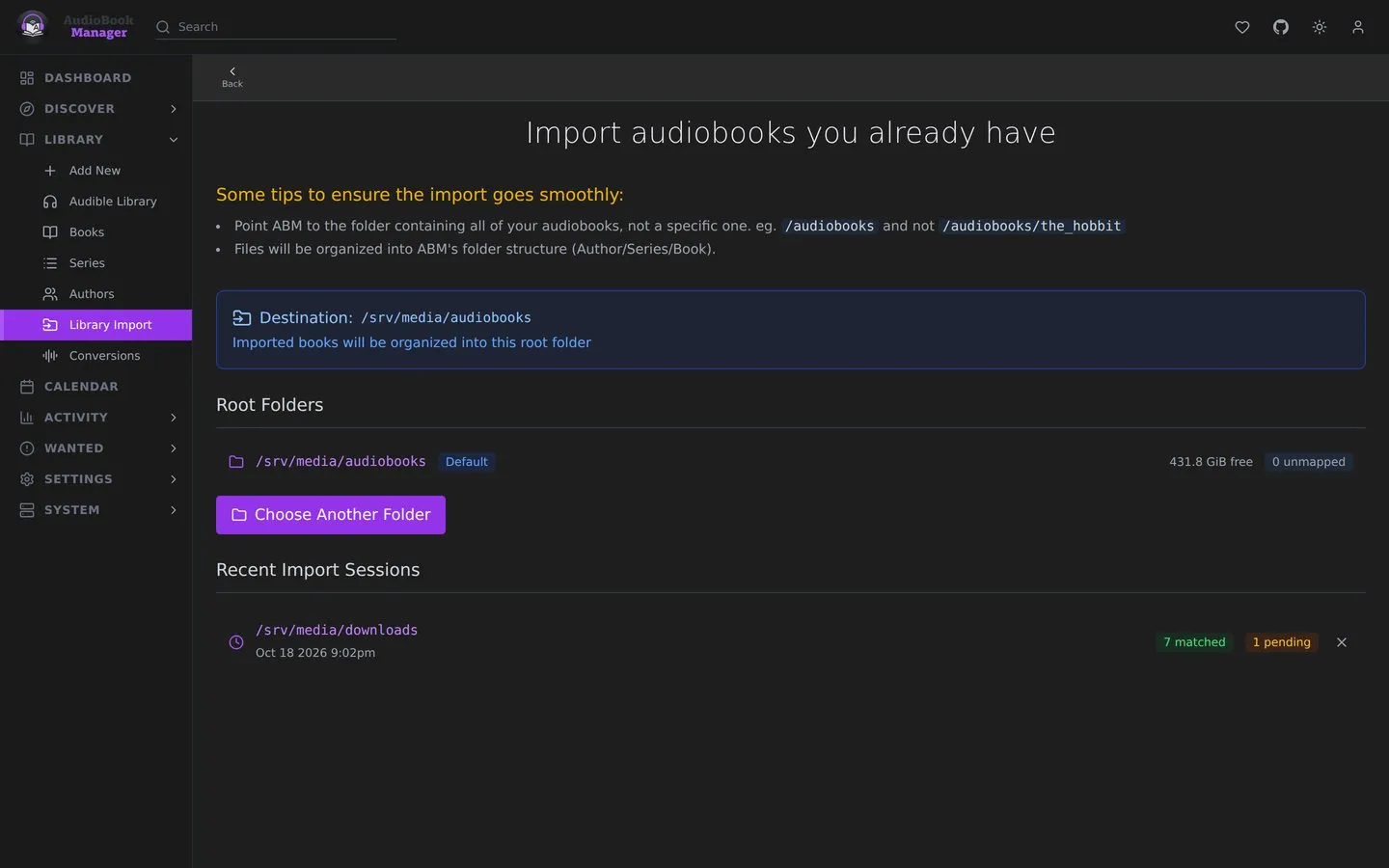
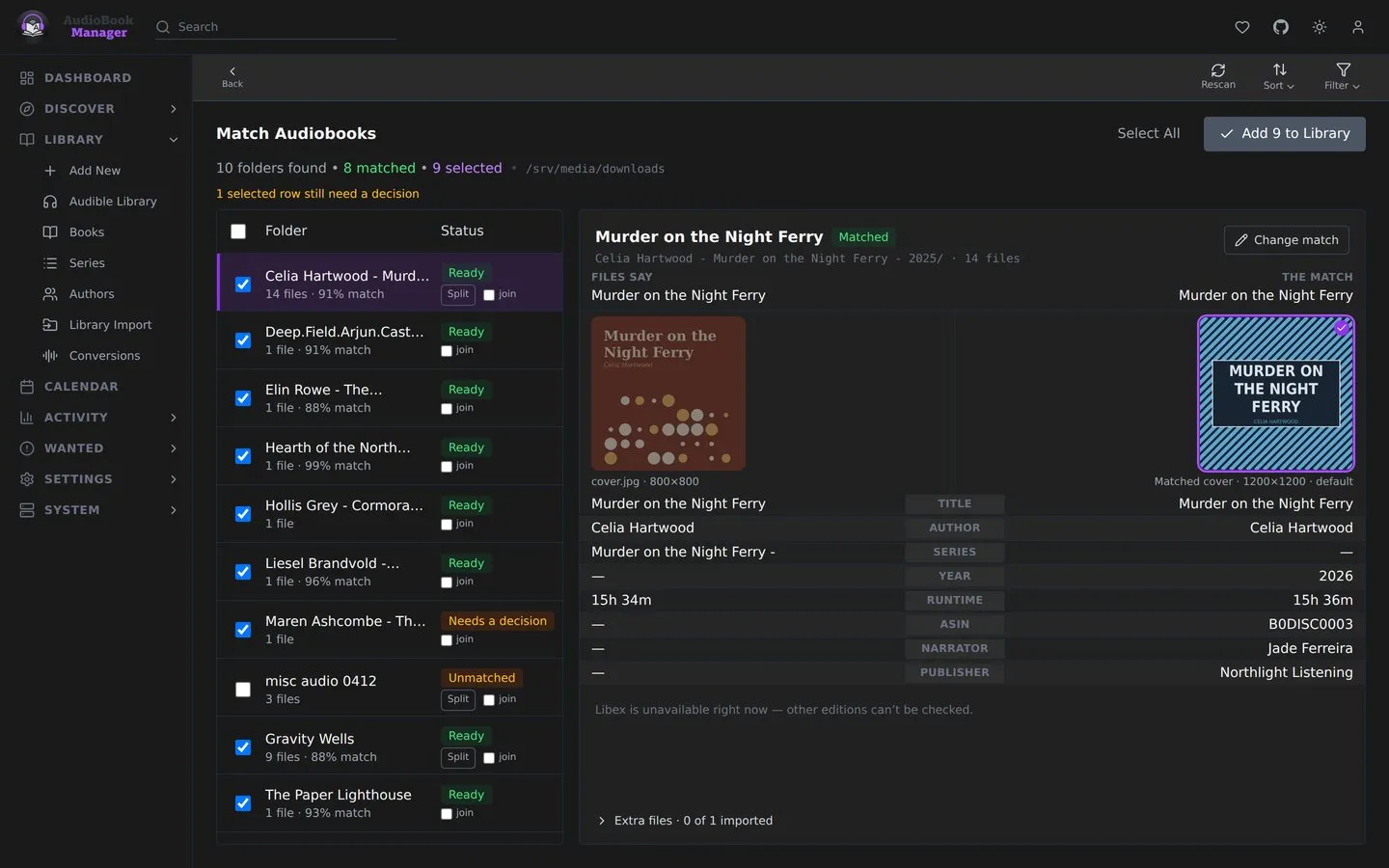
Library Import scans a folder of audiobooks, matches each folder to metadata, and adds the books to your library. Library > Library Import opens “Import audiobooks you already have”, where you pick a folder to scan. Once the scan starts, ABM moves to the matching page, headed Match Audiobooks, where you check the matches and add the books.
The flow
Section titled “The flow”- Scan a folder. Each folder with audio becomes a row.
- Check the matches. Fix the ones that need it.
- Select the rows and add them to the library.
Every option is an optional override of a default in Media Management. A plain scan then add never needs more than two clicks.
Reading the list
Section titled “Reading the list”- The summary shows how many folders were found and how many matched. Filter the list by All, Matched, Needs attention, Unmatched, In library or Failed lookup. The filter is kept in the page address.
- Each row shows the cover, title, author and series, and how sure the match is as a percentage, such as “95% match”. The folder details have Find a match or Change match to search by hand.
- When the files have no ASIN or runtime to confirm the edition, the folder details say so.
- Rescan picks up folders added since the scan and keeps your choices.
An ASIN found in a comment or description is only a hint. It counts as a match only when the title also agrees with the folder name. Only the dedicated ASIN tag counts on its own.
Joining, splitting and adding
Section titled “Joining, splitting and adding”- Join rows that are one book split across folders. Split them again from the folder details. A split asks first and says what happens: each file becomes a row of its own, whatever the folder matched to is discarded, and nothing on disk is touched.
- On a phone, hold a row for about half a second to start joining. A “Hold to join” hint sits on the first row until you dismiss it or open a row, and it doesn’t come back. Tap the other rows to mark them. They take numbers in the order you tap them, and the first one marked is the one the rest are matched as. Join rows in the more actions sheet does the same without holding. Join needs at least two marked rows, and nothing on disk is touched.
- On a phone, a folder’s details have Split into separate books when the folder holds several files.
- Add is blocked with a reason shown above the button, such as “Select at least one folder” or “2 selected rows still need a decision”.
- Anything that would remove or replace files asks first. Choosing a delete decision names the files and says whether they go to the recycle bin or are deleted for good, and the decision is only set once you confirm. That is a sheet on a phone and a dialog on desktop.
- A folder with Include turned off hides its decision, since nothing happens to it. On a phone, a folder that needs a decision opens with its question in view above the buttons.
- On a phone, Add opens a sheet showing what will be imported and what will be removed, with Copy, Move or Hardlink. Hardlink is grayed out with its reason underneath when it can’t be used.
- Leaving the page saves your pending edits.
Copy, move or hardlink
Section titled “Copy, move or hardlink”Settings > Media Management > Importing sets the default for Library Import: copy (the default), move or hardlink. You can pick another for each import.
A hardlinked book takes no extra disk space and the original stays where it is. Hardlink needs the default root folder to support it and to be checked first. Otherwise the option is grayed out with the reason. A file that cannot be linked, such as one on another drive, is copied and never moved. The finished import says how many were copied.
Extra files
Section titled “Extra files”Import Extra Files (on by default) brings a book’s cover, notes and other non-audio files along. It applies to Library Import, Manual Import and completed downloads alike. With Show Advanced, Preferred Cover picks the matched Audible cover (the default) or the folder’s own.
Long values
Section titled “Long values”A narrator, title or path cut off with an ellipsis opens in full when you tap or click it. Tap or click it again to close it. With a mouse, hovering shows the whole value too. From the keyboard, focus it and press Enter or Space.
Answers other than import
Section titled “Answers other than import”A row can also be answered Delete these files, keep the library copy (decline a copy of a book the library already has) or Delete this folder and its contents (decline a folder with no audio, which still holds artwork and sidecars). Both ask first with a “Delete these files?” dialog listing what goes, and the first has a Keep importing button to back out.
They clear only what the row stands for, plus any subfolder under it with no audio, and leave every other book’s folder alone. A row for a single file removes that file and the files that share its name exactly, and a loose file’s row imports only files named exactly like it, so Book.mp3 doesn’t pull in Book.part2.mp3. Deleting a folder with no audio is refused if anything the row owns turns out to hold audio. A subfolder ABM can’t read is never guessed at: the row fails, naming the folder, and nothing is removed. A row also fails if any of its files are still there afterwards. Files go to the recycle bin when one is set, and the task log lists each path removed (the first 50 per row, then a count) and each subfolder left alone with the reason.
Cover and extra files per folder
Section titled “Cover and extra files per folder”The inspector shows the folder’s own cover beside the matched edition’s, each with its pixel size. One click picks the other. Below it, Extra files lists every other file under the name of the Media Management switch it follows. A dot marks a choice that differs from the settings, and Apply this cover and these file choices to the N other selected copies one folder’s choices to the rest. A row that adds files to a book already in the library has no picker.
See also Moving a library in and Media Management.