 AudioBook
 Phone use
How ABM behaves on screens narrower than 768px.
Below 768px wide ABM uses phone layouts. From 768px to 1023px the sidebar shrinks to icons, and from 1024px up you get the full sidebar.
Navigation
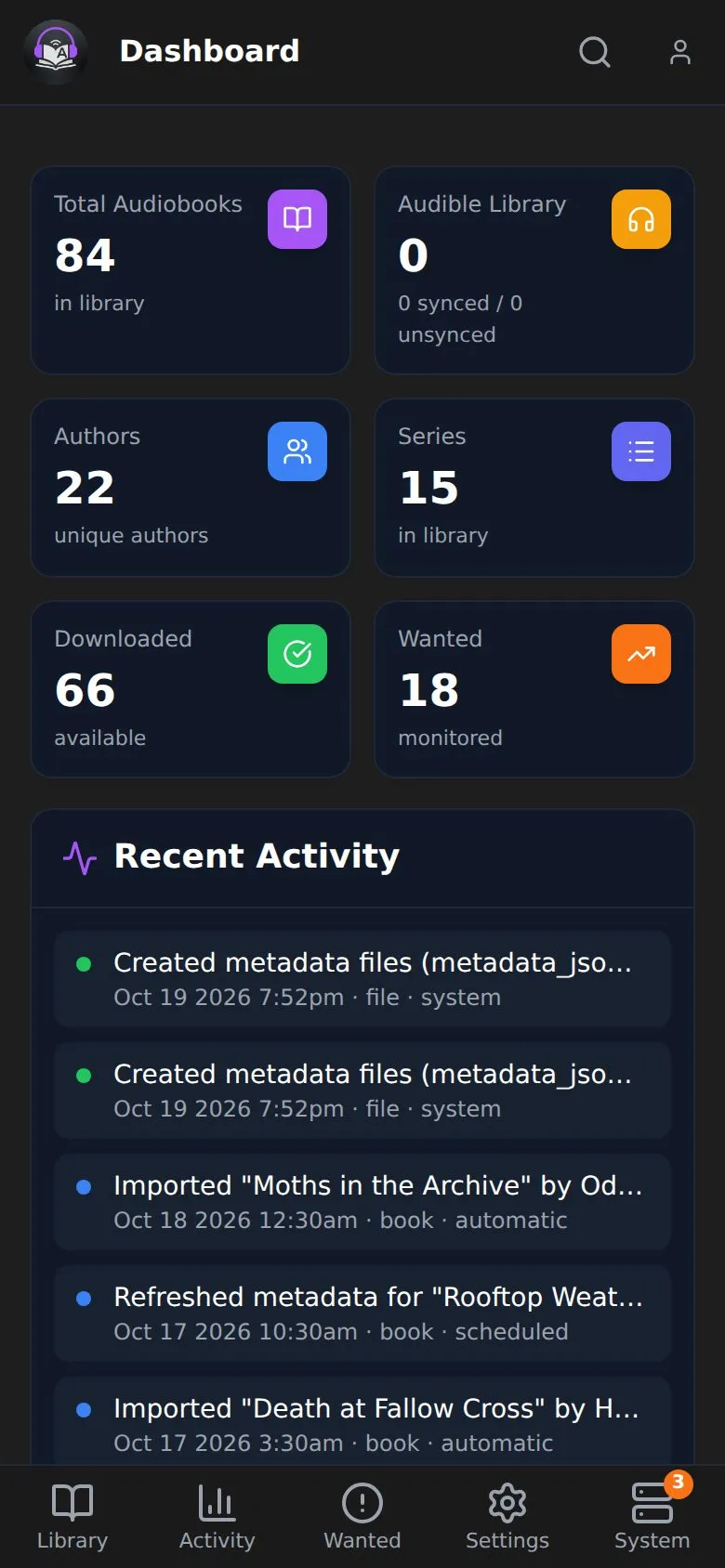
Section titled “Navigation”There is no sidebar. A bar at the bottom has five tabs: Library, Activity, Wanted, Settings and System. A tab with several pages opens a small menu above it. Library holds Books, Authors, Series, Add New, Library Import, Audible Library, Conversions and the Discover pages. Activity holds Queue, History, Calendar and Blocklist. Tap the logo for the Dashboard.
The top bar
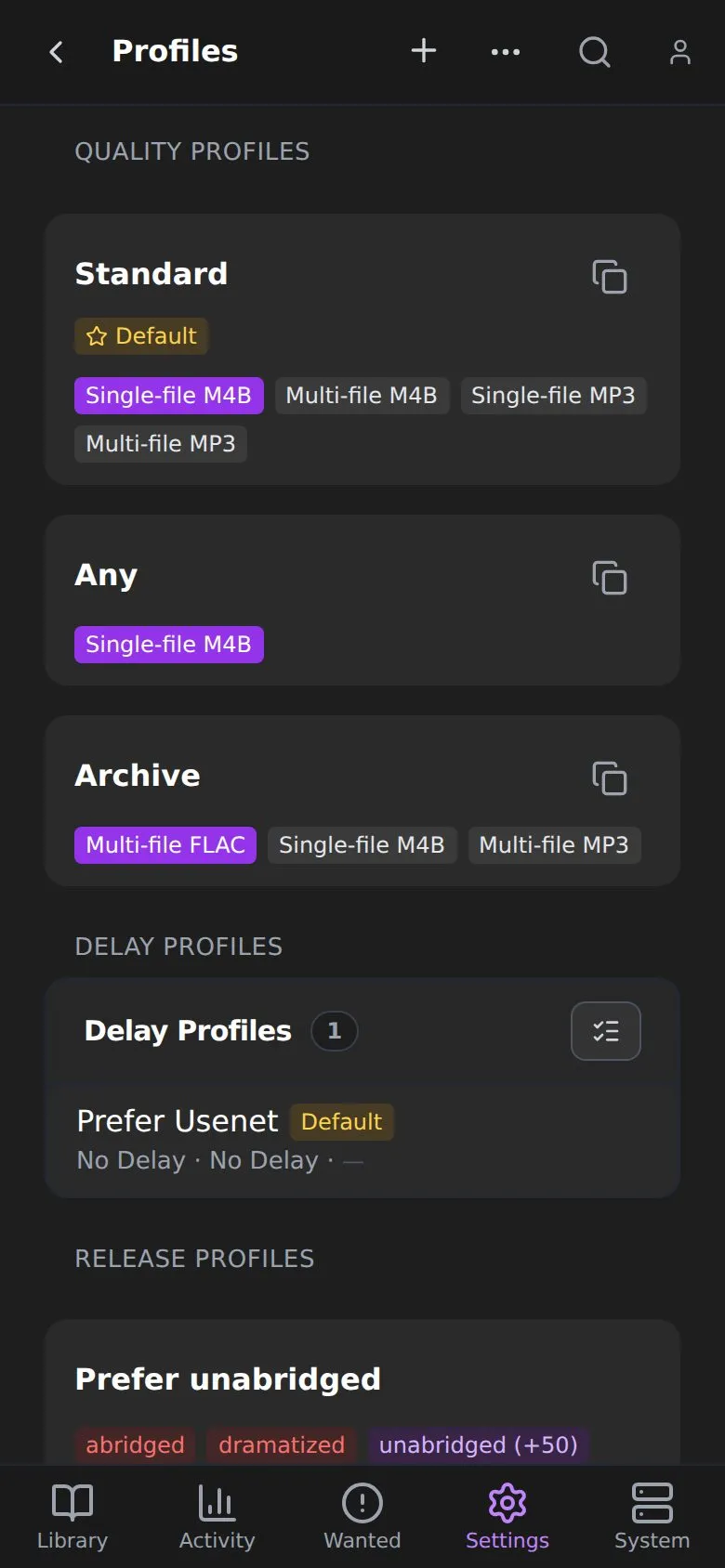
Section titled “The top bar”Page actions are icons. Those that don’t fit are under More actions, which opens a sheet. Search all wanted on Wanted and Series lives there, as the last row. On Indexers, Download Clients, Import Lists, Connect, Profiles and Tags, Add is the plus button in the top bar. A settings page’s Save becomes a bar pinned to the bottom of the screen.
Pull down at the top of a page to refresh it.
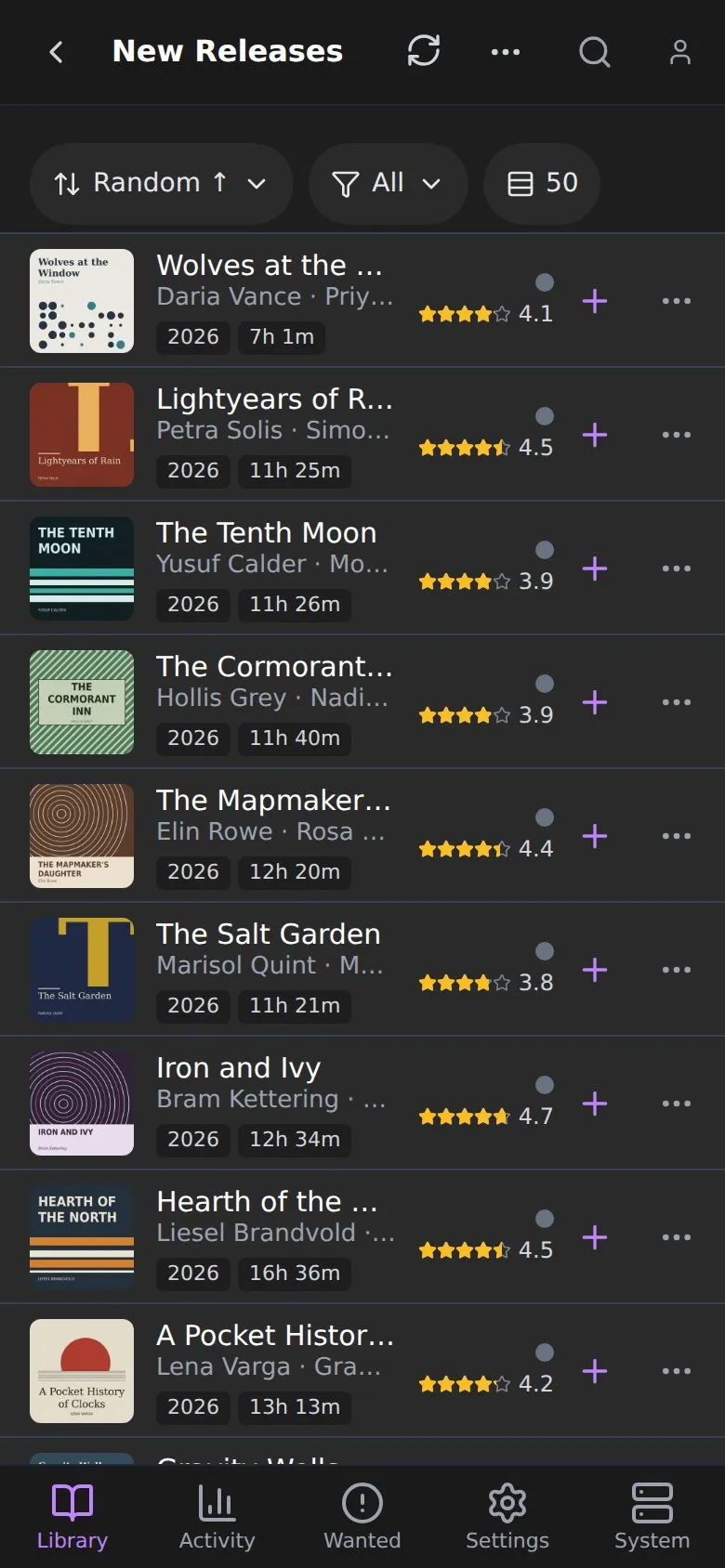
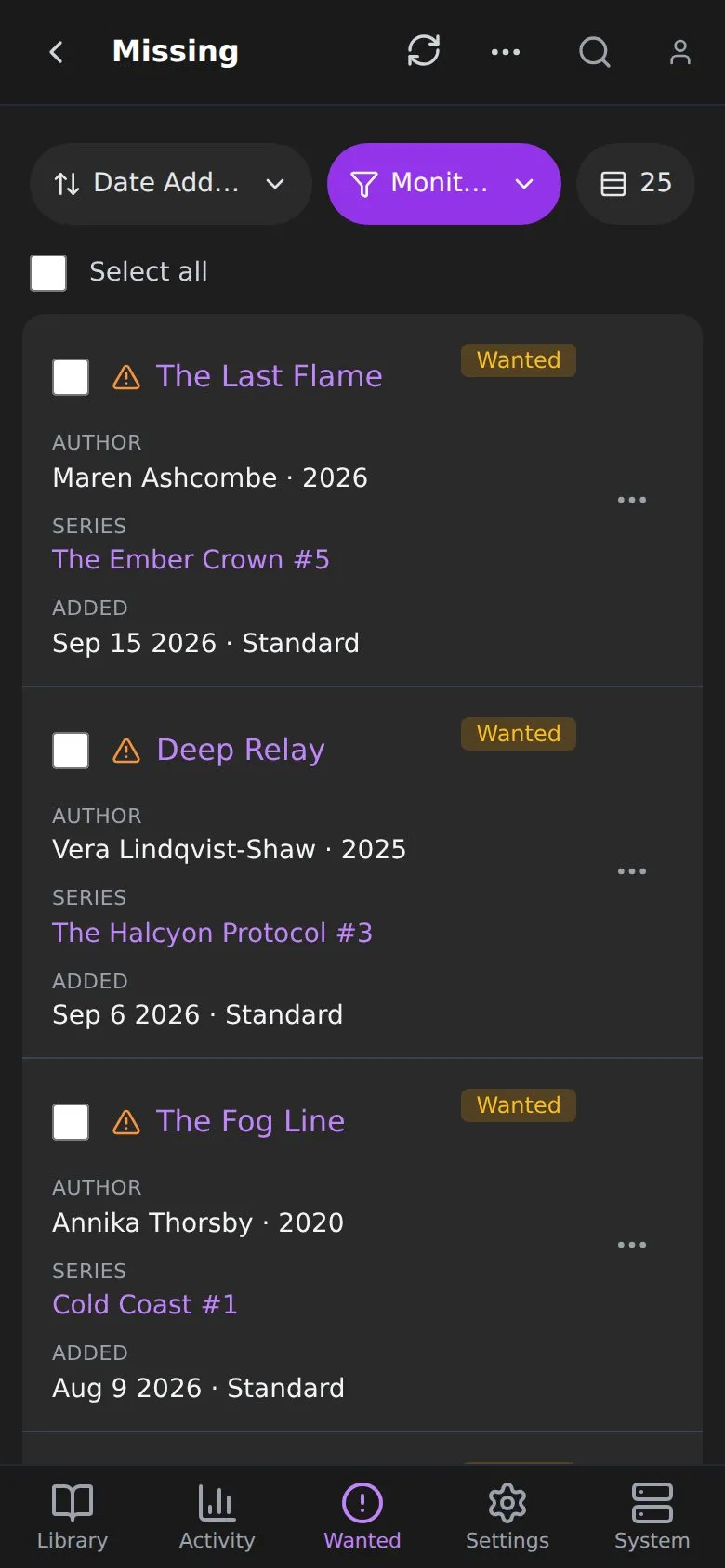
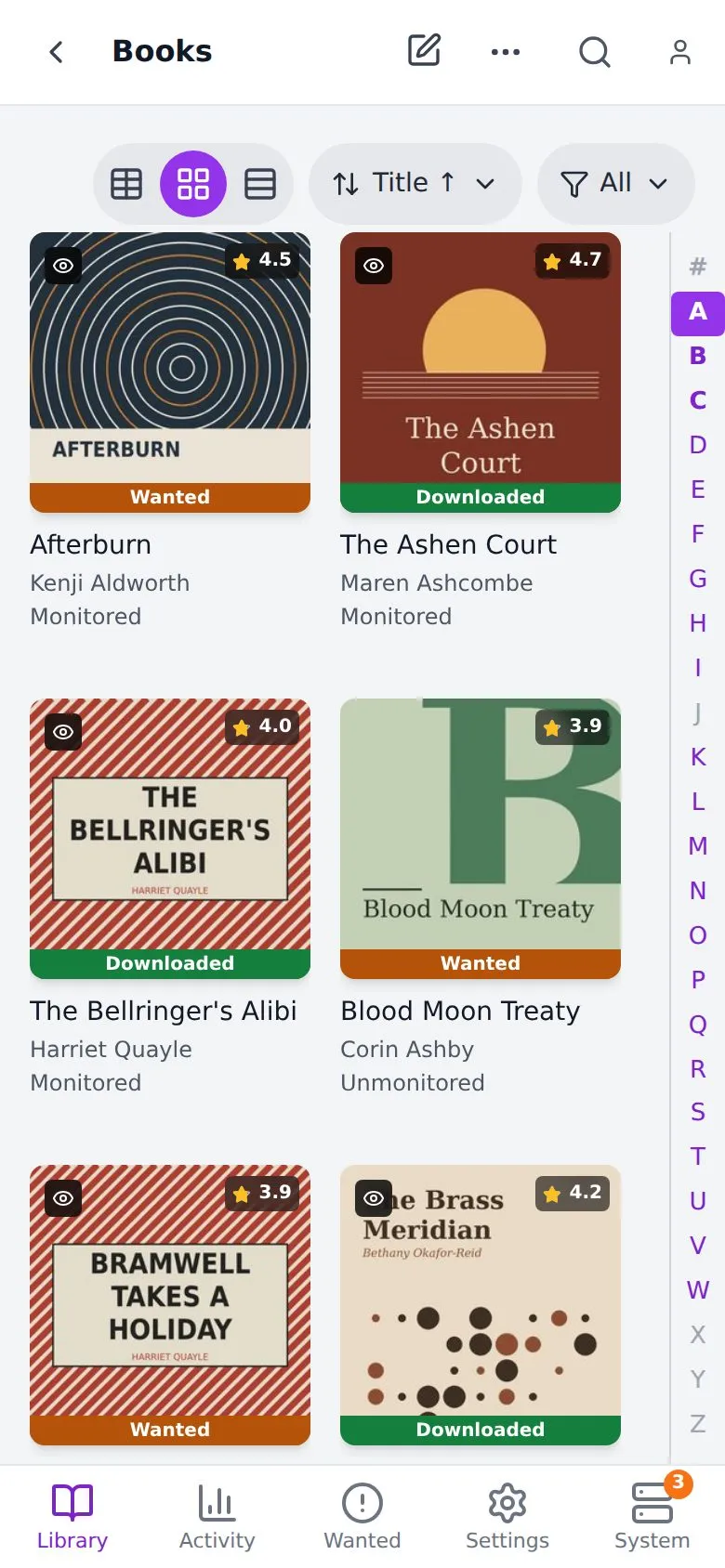
- A strip of pills under the header holds Sort, Filter and the view switch, and it stays put as you scroll. The Filter turns purple while one is active, and saved and custom filters are inside its menu. Paged lists such as Queue, History and Discover also have rows per page.
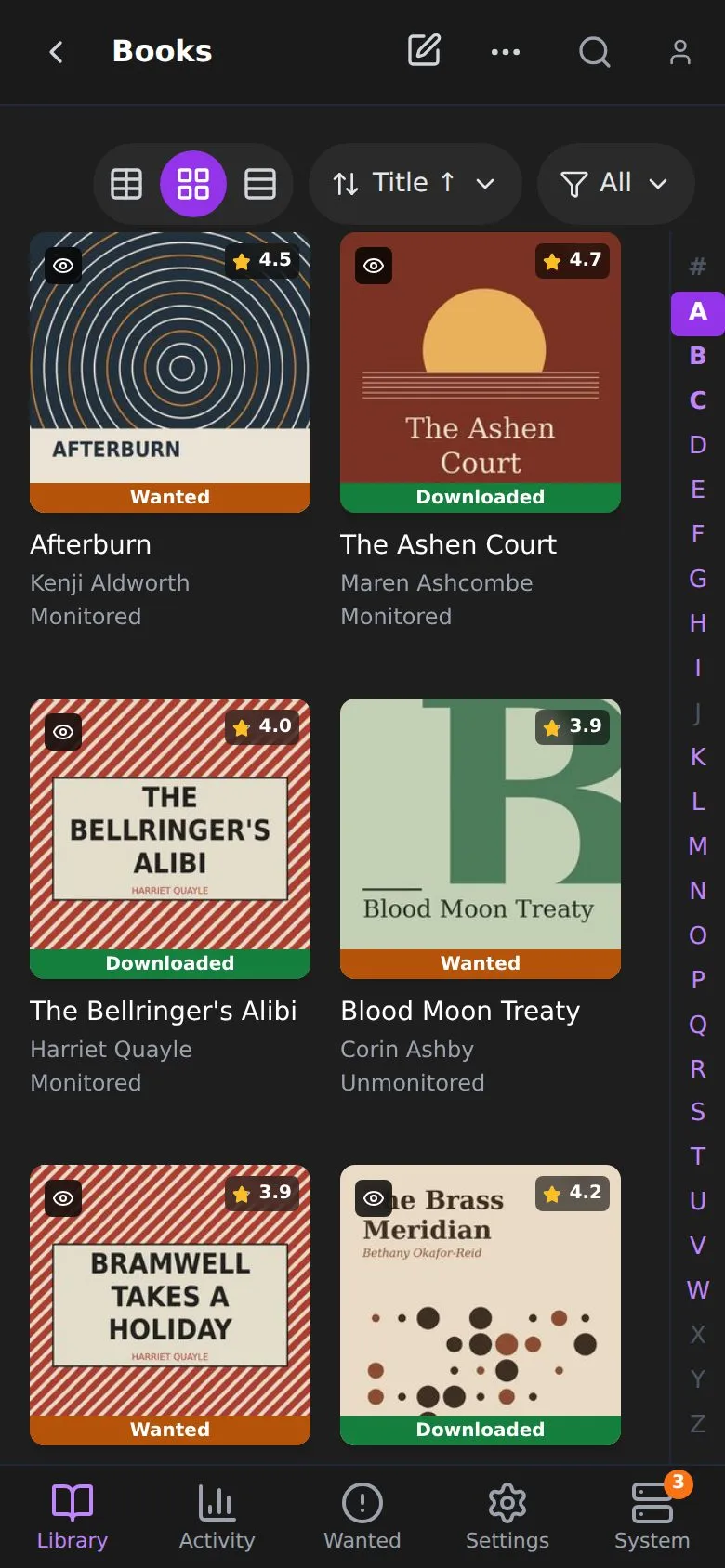
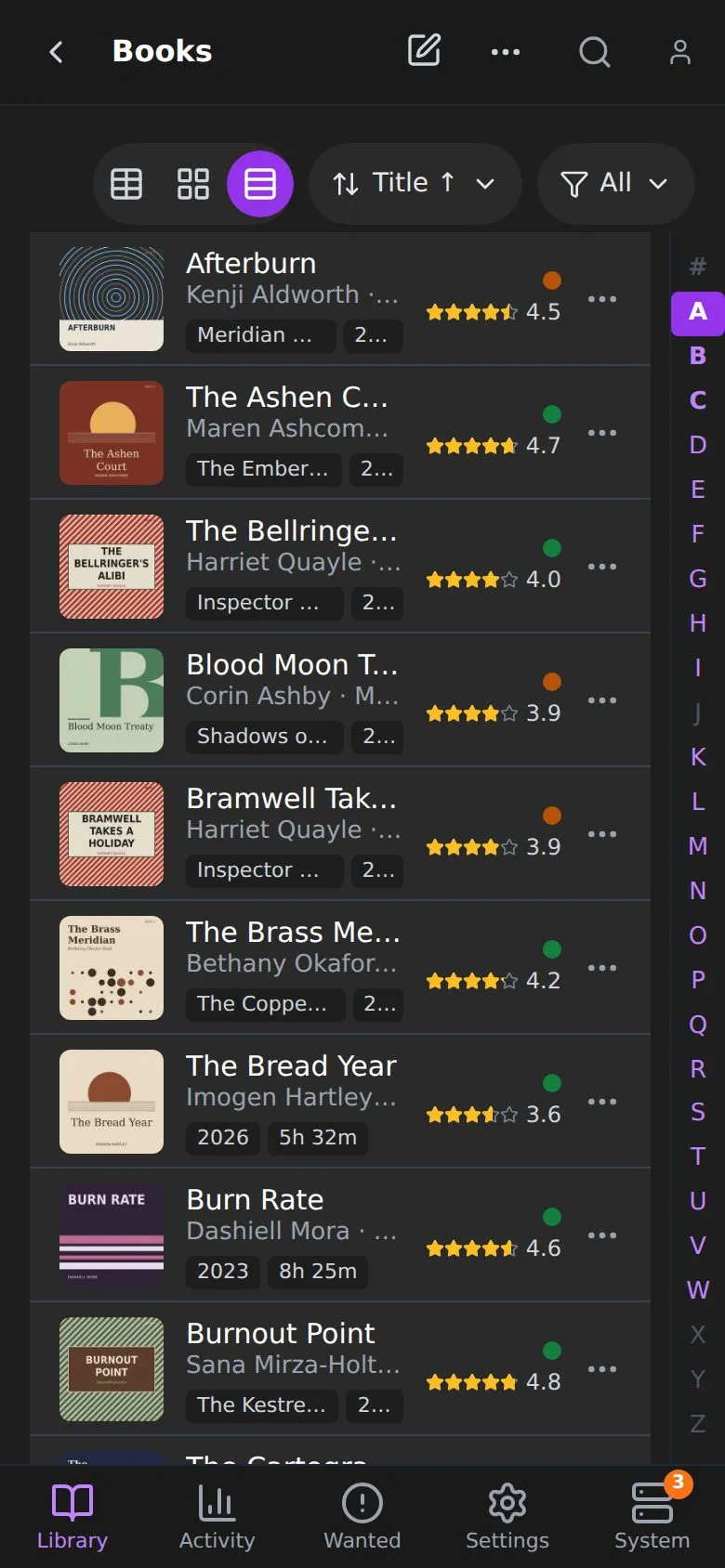
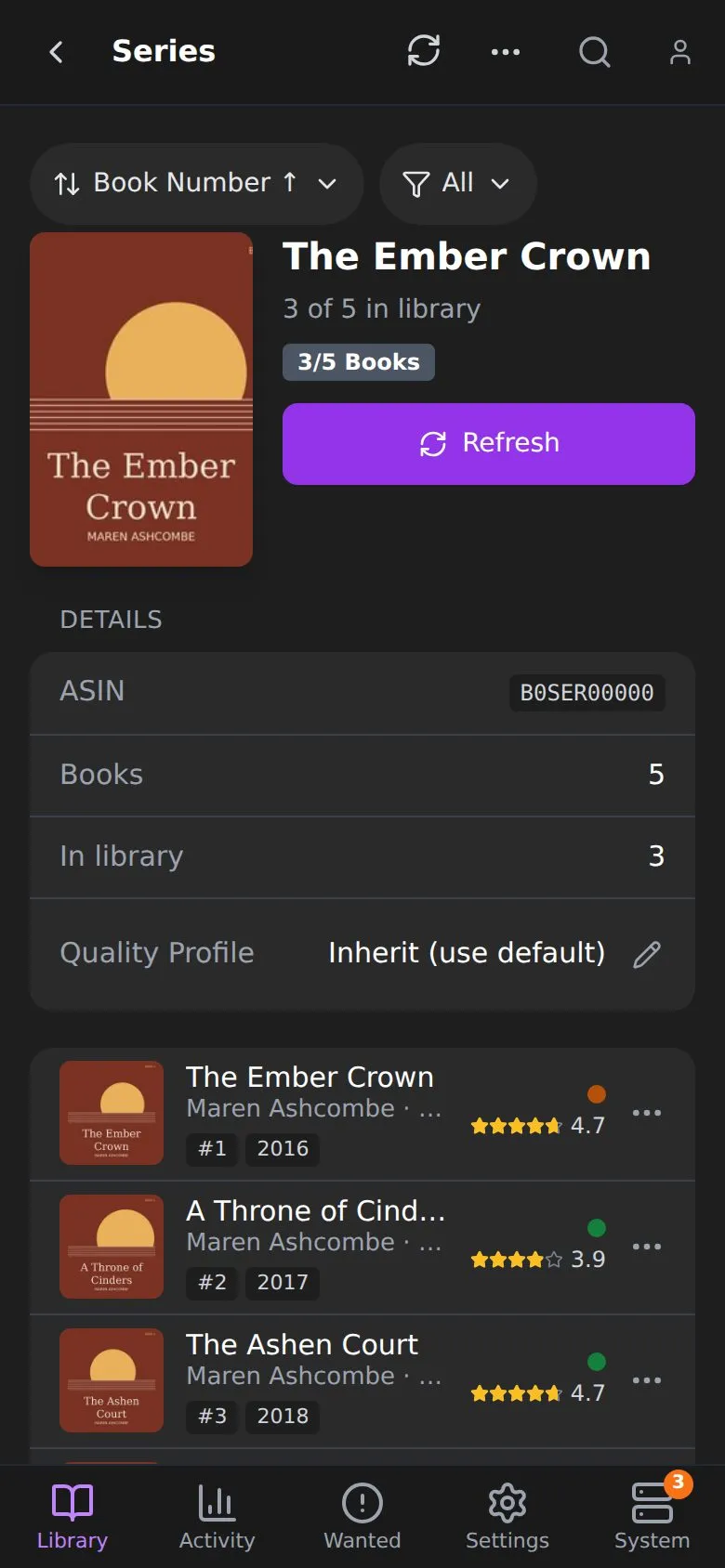
- Books offers Table, Posters and Overview. Series and Authors offer Posters and Overview. In Table and Overview each book is one row: cover, title, authors and narrators, a few chips, a status dot and the rating.
- Poster size sets the columns: small is 3, medium is 2, large is 1. The Options toggles apply on a phone too, including Show Status Text (the status goes on the poster’s bar) and Show Path.
- Tap a row to open it. Everything else is behind the … button, which opens an actions sheet.
- The A to Z bar stays on the right. It hides when the screen is very short, such as a phone held sideways.
- Totals and the status legend sit at the end of the list.
- Tables such as Queue and History show each row as a card.
Match Audiobooks page
Section titled “Match Audiobooks page”- On Library Import’s results page, the title is Match Audiobooks. It gets smaller below 390 pixels wide and wraps to two lines below 360, so it shows in full.
- The … sheet has three groups. Selection holds Select all ready, Deselect unmatched and Join rows. Sort holds the sort choices. Scan holds Rescan for new folders.
- The bar at the bottom keeps only the count of selected folders, Deselect all and Add. Joining is covered under Joining, splitting and adding in Library Import.
Selection
Section titled “Selection”In selection mode, tapping a row selects it. The selection bar replaces the bottom tabs, and Back leaves selection mode.
Book, series and author pages
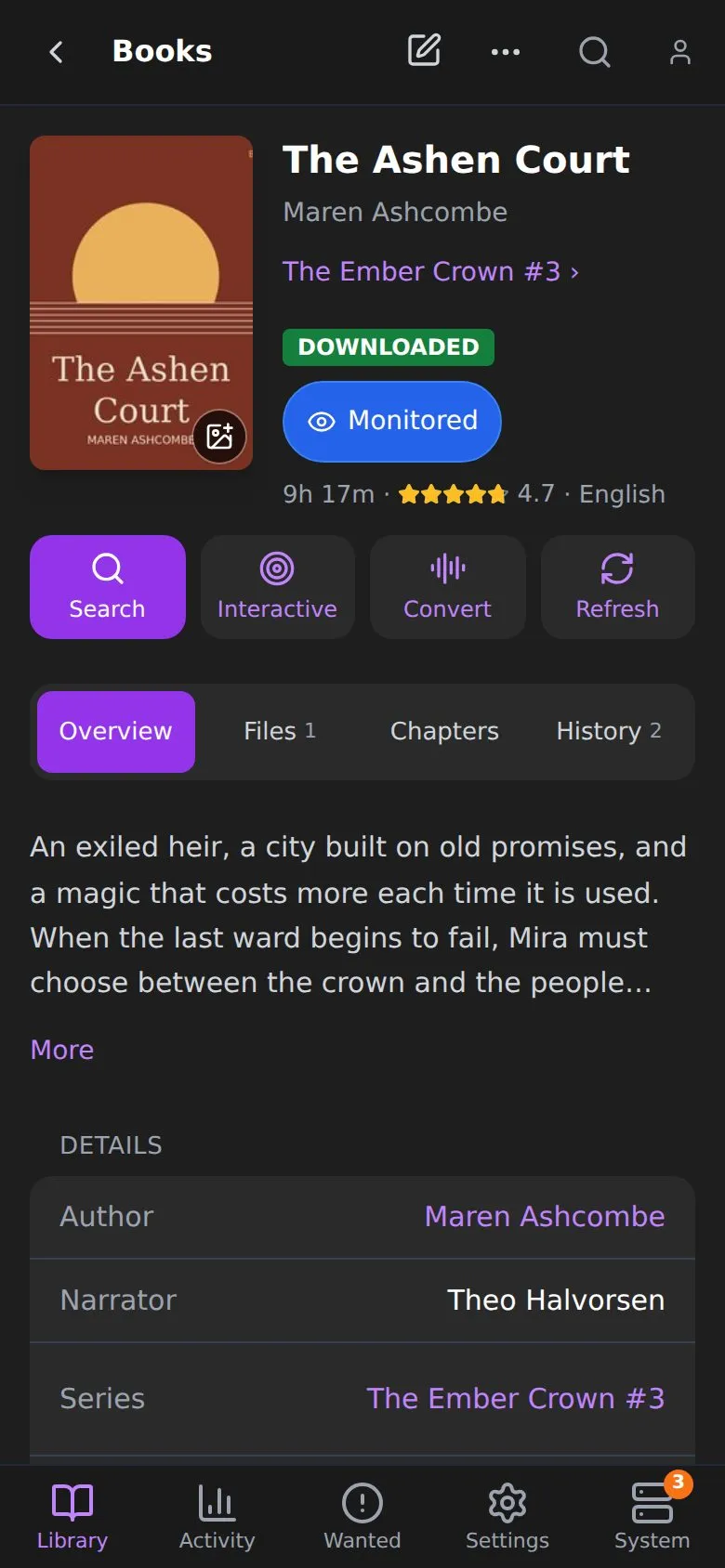
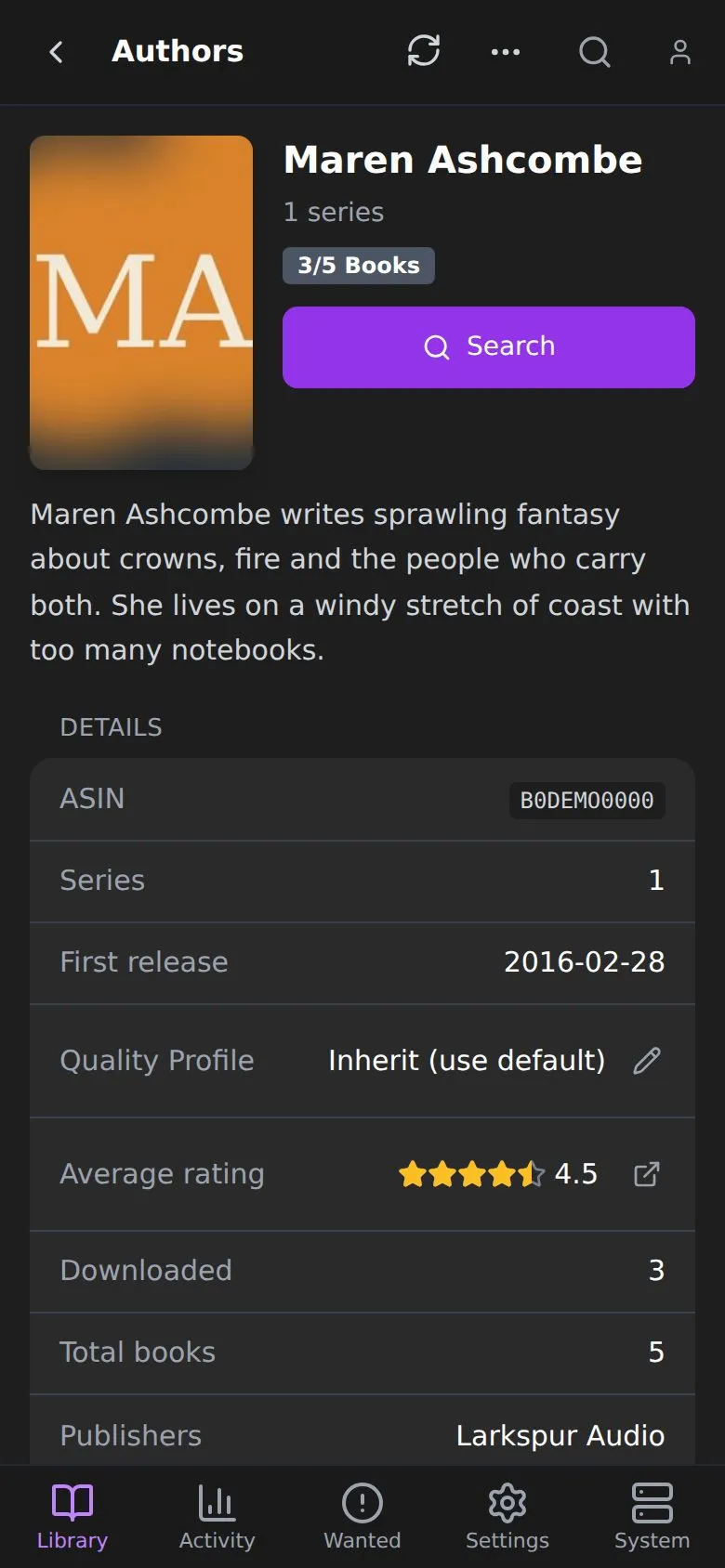
Section titled “Book, series and author pages”A book page has Search, Interactive, Import (Convert once it has files) and Refresh at the top, with Edit and an Actions sheet next to them, and Overview, Files, Chapters and History tabs below. On a series page, tapping a book you don’t own opens its actions.
Other pages
Section titled “Other pages”- Calendar is a day-by-day list. The view picker sets the period. Agenda is not offered.
- Conversions has Queue and History tabs. Pause queue is an icon in the top bar beside the plus button. Tap a job for its progress and source files, and a failed job has Retry on its row.
- Add New opens a sheet with the book’s cover. When the book is in a series, Add whole series adds every book in it.
- Dashboard cards stack in one column.
- Dialogs open as sheets from the bottom of the screen.
Settings
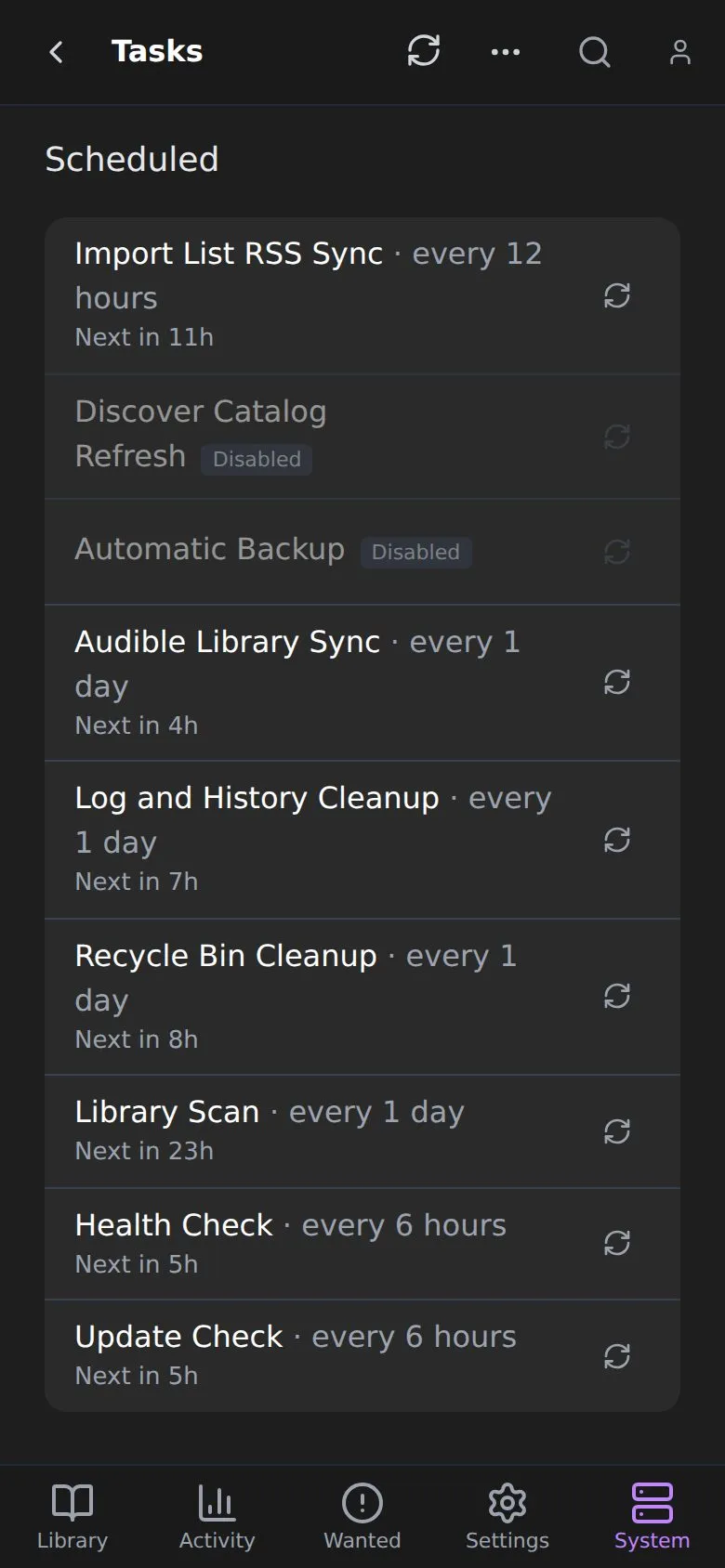
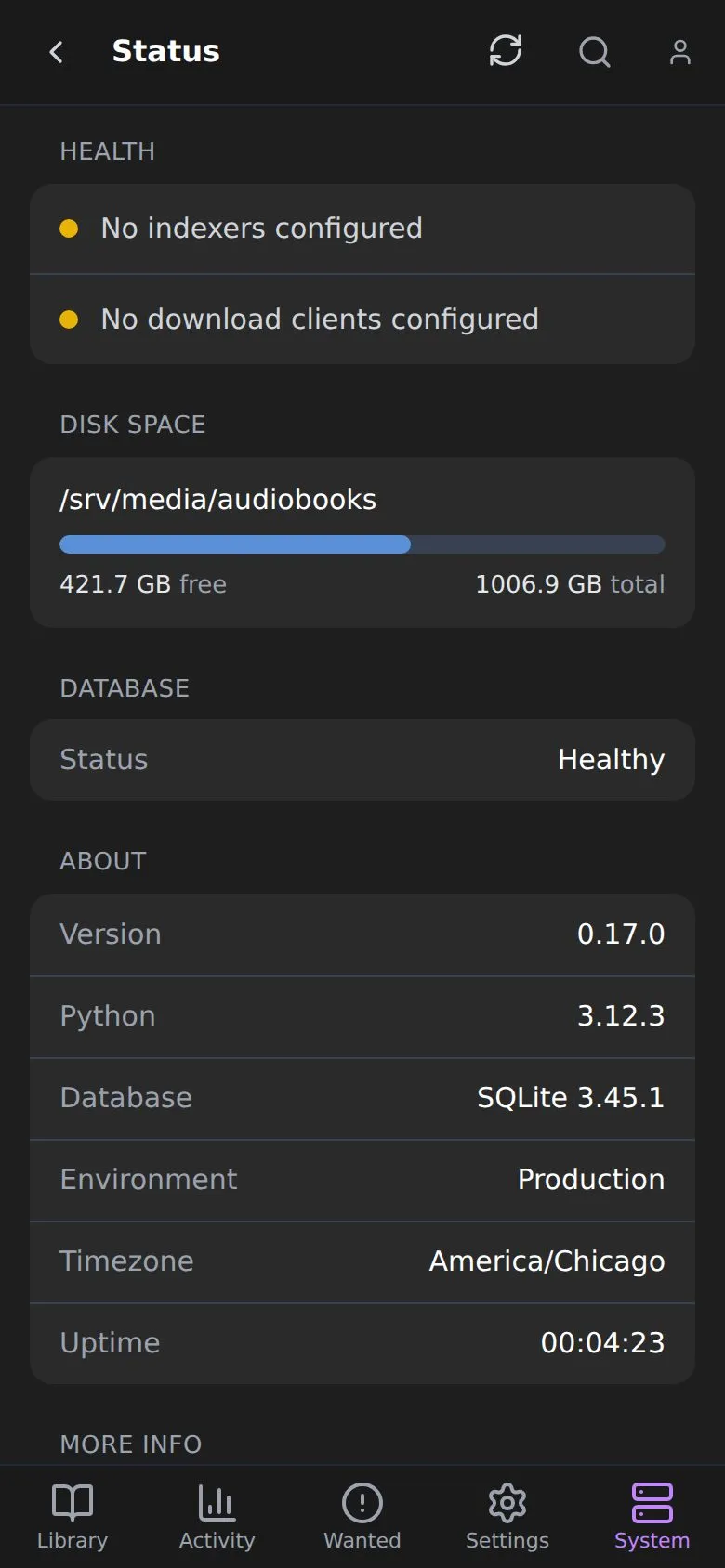
Section titled “Settings”Settings is a grouped list: Library, Sources and App. Each row is a link with the page’s name and what it is for. Download clients, indexers and other entries are full-width cards, with Add in the top bar. A card shows its health as a word beside the dot (Healthy, Recovering, Failing, Critical or Unknown), and tapping it opens the health history. Audible settings are grouped into cards, and Status, Tasks, Activity Log, Log Files and the other System pages are laid out for a phone with an error and a Retry button if a check fails to load.
In Log Files, Live and Refresh are in the top bar, and with Live on the log keeps scrolling to the newest line.
Import Workbench
Section titled “Import Workbench”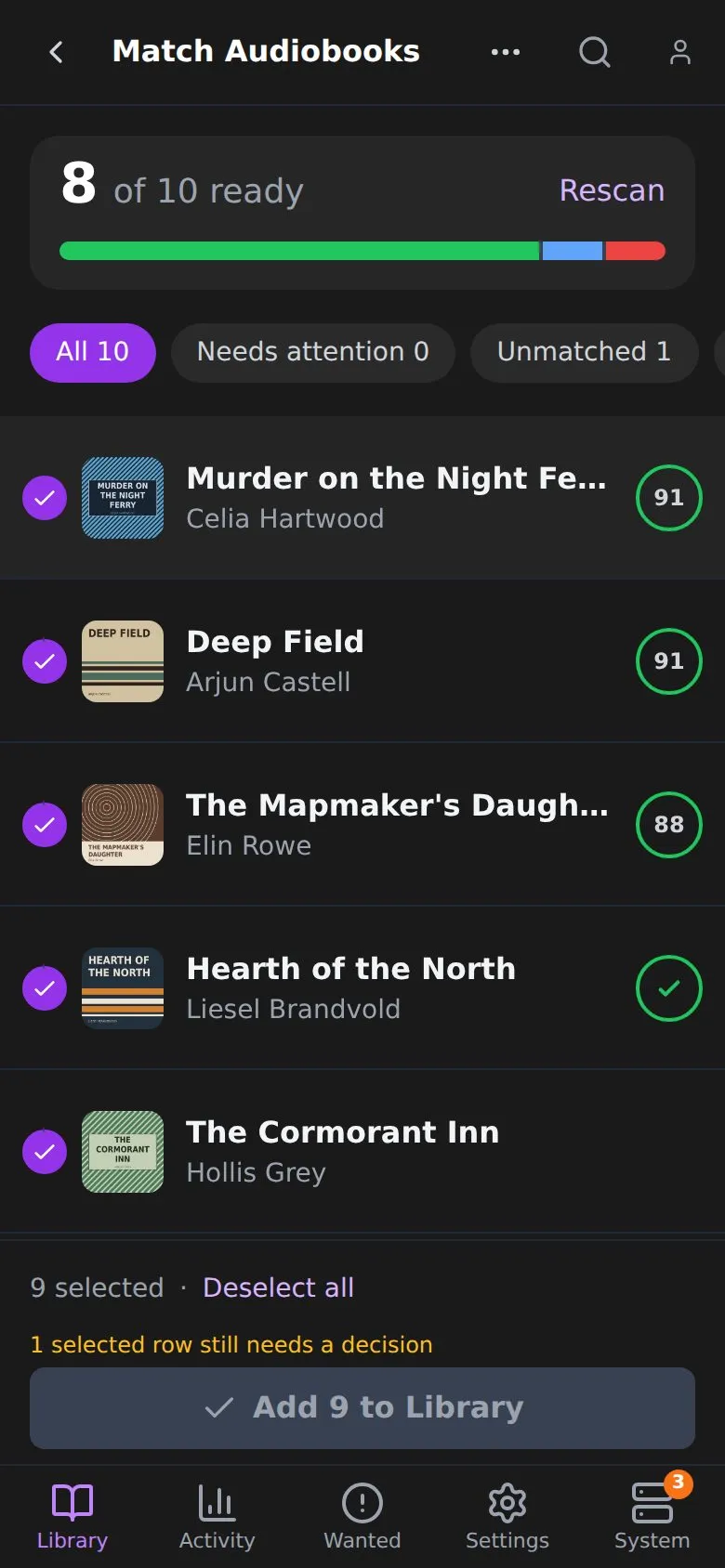
- A summary card shows how many folders are ready. Tap it to open the legend and filter the list.
- A row of status chips under it filters the list. Tap a folder to open it as its own screen.
- The bottom bar shows how many are selected and the Add button, and says why Add is blocked.